The request sounds simple — “turn this PDF into JPGs” — but it hides a fork in the road that most guides skip entirely. There are actually two different jobs people mean by it, and picking the wrong one gets you a blurry mess or forty files you didn’t want.
This guide covers both, the resolution settings that actually matter, and the phone workflow that avoids WhatsApp’s compression mugging your file.
Contents
- First: which kind of JPG do you need?
- Method 1: Render each page as a JPG
- Method 2: Extract the embedded images
- Doing it on a phone
- The resolution setting that decides everything
- Sharing gotchas (WhatsApp, email)
- FAQ
First: which kind of JPG do you need?
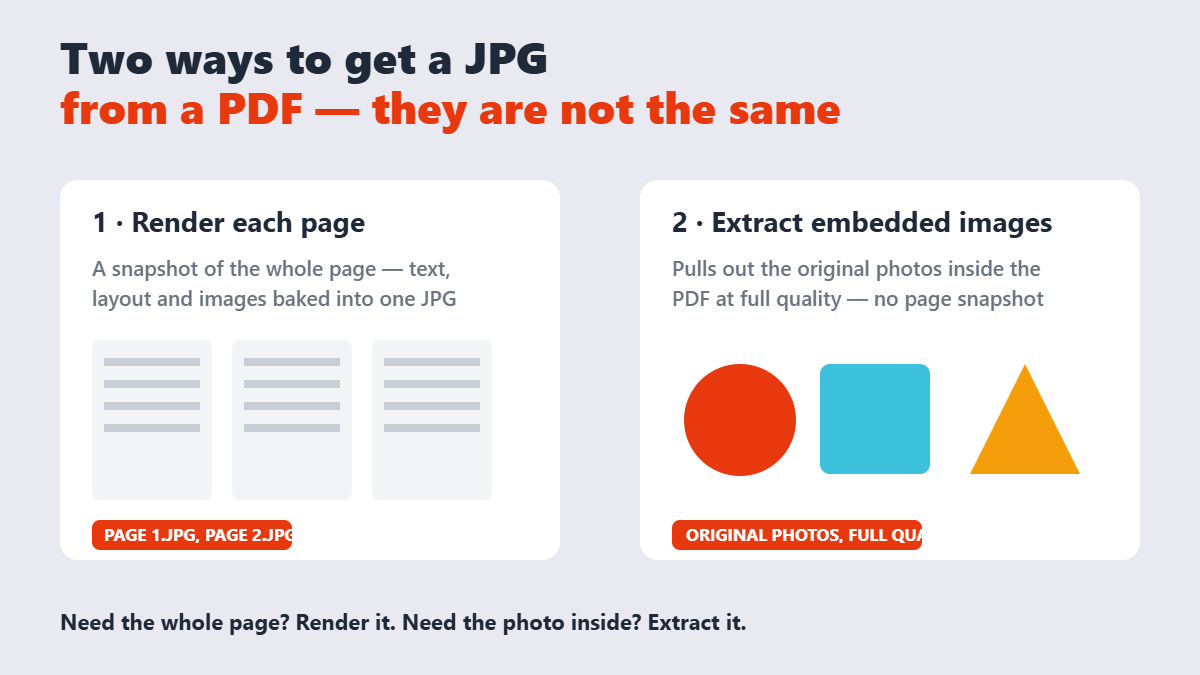
Rendering a page produces a picture of the entire page — headings, footers, margins and all. That’s what you want for previews, slide decks, social posts, and “here’s what page 4 looks like” emails.
Extracting embedded images pulls out the original photos stored inside the PDF, untouched. If someone sent you a PDF catalog and you want the product photos back at full resolution, extraction is the only correct answer — a page render would just be a screenshot of them.
Most people asking for “PDF to JPG” actually want the first one. Check yourself before converting.
Method 1: Render each page as a JPG
The PDF to Image tool on Sejdaa handles this in your browser — the file never leaves your device, which matters more than most people realize until they’re converting someone’s contract.
- Drop the PDF in; every page shows up as a thumbnail.
- Choose JPG for smaller files (or PNG if the pages have sharp text and diagrams — see PDF to PNG).
- Pick your resolution: 150 DPI for screens, 300 DPI for anything headed to a printer.
- Select specific pages or convert everything, then download individually or as a ZIP.
Competing tools do the same job — PDF24 and Sejda‘s own converter are fine alternatives — but they upload your file to their servers first. Browser-based conversion means nothing to delete, nothing to leak, and no waiting on an upload for a 100-page file.
Method 2: Extract the embedded images
When the goal is the original photos, use the Extract Images tool. It pulls every embedded image out at its stored resolution — no re-rendering, no quality loss — and hands them over individually or as a ZIP. Logos, charts, and photos all come out as separate files. If the PDF has no embedded images (pure text), you’ll get nothing, which is the tool correctly telling you Method 1 is your answer.
Doing it on a phone
Both methods work in mobile Safari and Chrome without an app, because the processing happens on the device. The honest caveat: converting a 200-page scanned PDF on a five-year-old phone will be slow, and very large files can fail on low-memory devices. For everyday jobs — five pages to JPG for a WhatsApp group — it’s seamless.
The resolution setting that decides everything
DPI is where conversions succeed or disappoint. The numbers are simple:
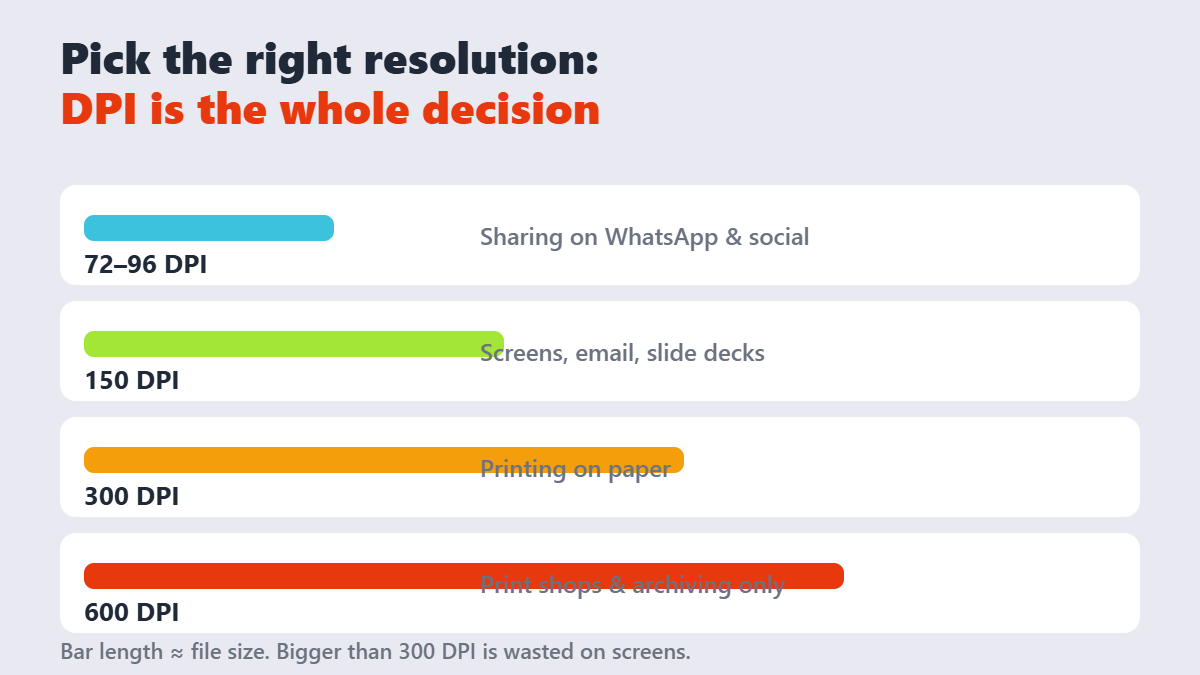
| Destination | Recommended DPI | What happens if you overshoot |
|---|---|---|
| WhatsApp, Instagram, chat apps | 72–96 | Nothing good — the app recompresses it anyway |
| Email attachments, slide decks | 150 | 2–4× bigger files with zero visible gain on screens |
| Office printing | 300 | Slower uploads; printers can’t use the extra data |
| Professional print shop | 300–600 | The only case where big files earn their keep |
My opinion, formed after converting too many 600 DPI scans: 150 DPI is the correct default for almost everyone, and the fact that every tool default to 300 wastes more bandwidth than it saves face. Change it only when paper is involved.
Sharing gotchas (WhatsApp, email)
WhatsApp is the silent killer of converted pages. Send a JPG as a photo and the app recompresses it aggressively — fine print becomes porridge. Send it as a document instead, and the file arrives untouched. It’s a one-tap difference in the attachment menu that most people never notice.
Email has the mirror-image problem: 10 pages at 300 DPI can blow past Gmail’s 25 MB attachment cap. If that happens, drop the DPI to 150 or compress the images — the image compressor shaves JPGs down without visible loss.
FAQ
How do I convert a PDF to JPG without installing software?
Use a browser-based converter like the one on Sejdaa: drop the PDF in, pick your pages and DPI, and download the JPGs. Nothing is installed and the file never leaves your device.
What’s the difference between PDF to JPG and PDF to PNG?
JPG produces smaller files ideal for photos and sharing; PNG is lossless and sharper for pages full of text, line art, or diagrams. If a page looks fuzzy as a JPG, convert it as PNG instead.
Why are my converted JPGs blurry?
Almost always a resolution problem. If the tool was set to 72 DPI and you’re viewing on a large screen or printing, the image doesn’t have enough pixels. Re-convert at 150 DPI for screens or 300 DPI for print.
Can I convert only one page of a PDF to JPG?
Yes — most converters, including Sejdaa’s, let you select specific pages before converting. You’ll get just the page you need instead of a ZIP of everything.
How do I get the original photos out of a PDF at full quality?
Use an image extraction tool rather than a page converter. Extraction pulls the embedded images exactly as they were stored, while a page render re-samples everything at your chosen DPI.
Does converting PDF to JPG lose quality?
Rendering a page always re-samples it, so the output equals your DPI setting, not the PDF’s internal quality — set 300 DPI and print-quality output follows. JPG compression itself is visually invisible at normal quality levels, but it is lossy, so don’t re-save a JPG repeatedly if you can avoid it.