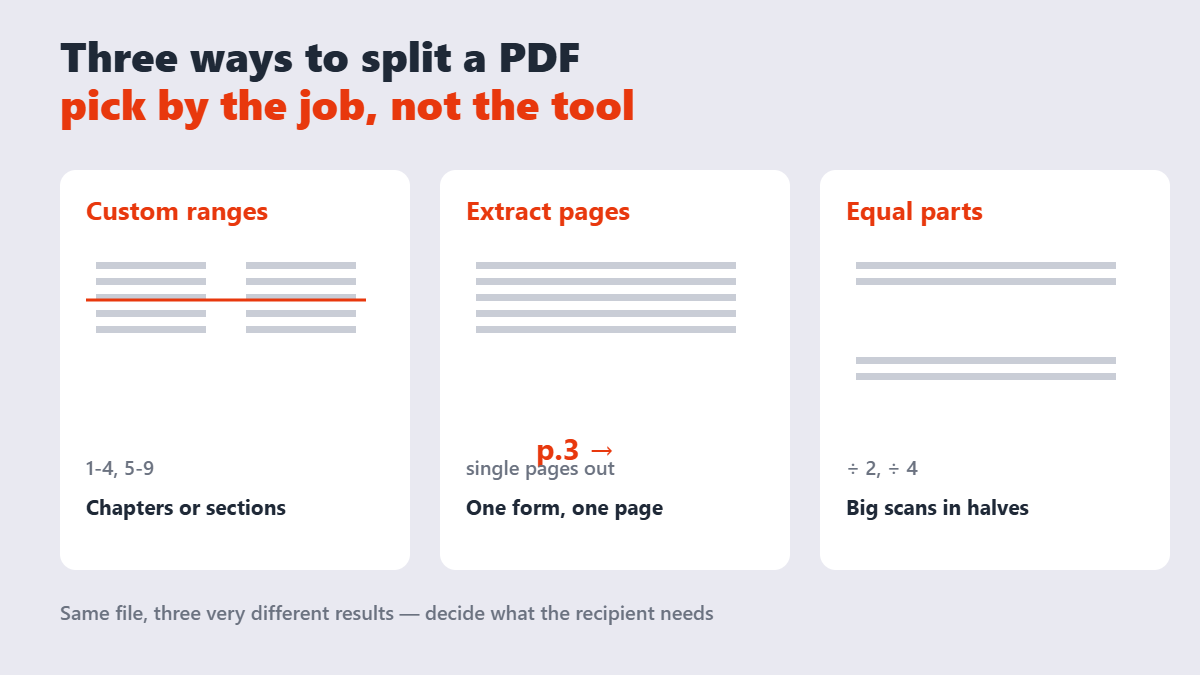
“Split this PDF” sounds like one job, but the person asking usually has one of three very different jobs in mind: pulling one page out of a 60-page packet, carving a report into its chapters, or chopping a 200-page scan into email-sized halves. Tools treat these differently, and picking the wrong mode is how people end up with forty files they didn’t want.
Contents
- Why split a PDF at all?
- Method 1: Split by custom ranges
- Method 2: Extract single pages
- Method 3: Split into equal parts
- What the popular tools actually allow
- Do split files lose quality?
- FAQ
Why split a PDF at all?
The most common reason is courtesy: nobody wants to scroll through 80 pages to find the six that concern them. Splitting also solves distribution problems — sending one contract’s signature page to legal while the finance team gets the invoice section — and size problems, because a smaller file slips under attachment caps that the whole document would burst.
There’s a privacy angle people overlook. A merged packet often contains more than the recipient should see. Extracting just the relevant pages means the extra material never leaves your device.
Method 1: Split by custom ranges
Custom ranges are the workhorse mode. On the Split PDF tool — which runs entirely in your browser, so the file never leaves your device — you type ranges like 1-4, 5-9, 10 and get three separate PDFs back, one per range.
- Drop the PDF in and let the thumbnails load.
- Enter your ranges, separated by commas. Overlapping ranges are fine if a page belongs in two files.
- Split, then download each file or take the whole set as a ZIP.
Best for: chapters, departments, “everything before page 12 and everything after.”
Method 2: Extract single pages
When you need exactly one page — a filled form, a signed page, a single invoice — range syntax is overkill. Extract mode saves every page as its own file, or you pick the one page you need. If you only want the images embedded in a page rather than the page itself, the image extraction tool is the better grab.
Method 3: Split into equal parts
Huge scans are the classic case here: a 200-page document becomes two 100-page files that email tolerates. Equal-parts mode asks how many pieces you want and does the arithmetic for you. If the pieces still come out too big, compress each part afterward — splitting first usually makes compression more effective anyway.
What the popular tools actually allow
Before you pick a splitter, the fine print worth knowing:
| Tool | Free-tier reality | Privacy model |
|---|---|---|
| Sejdaa (browser-based) | No daily task caps, no output-file cap | Runs locally — file never uploaded |
| Adobe Acrobat Online | Up to 20 output files per split (19 divider lines) | Upload to Adobe’s servers |
| Smallpdf | Free tasks are limited per day; Pro removes caps | Upload to Smallpdf’s servers |
| iLovePDF | Free with size caps on large documents | Upload to iLovePDF’s servers |
My honest take: for a one-page extract, any of these works. The differences show up on exactly the files that are painful to upload in the first place — big, sensitive, or numerous. A local browser tool sidesteps all three constraints at once, which is why it’s my default.
Do split files lose quality?
No — and this matters more than people realize. Splitting rearranges references to existing pages; it doesn’t re-render, resample, or recompress anything. The output page is pixel-identical to the input page. The tools that do degrade quality are the ones that “split by printing to a new PDF” — avoid those, and you avoid the problem entirely.
FAQ
How do I split a PDF into separate files for free?
Use a free browser splitter: drop the file in, define ranges or pick pages, and download the results as individual PDFs or a single ZIP. Browser-based tools like the one on Sejdaa do this without uploading your document anywhere.
Can I split a PDF without Adobe Acrobat?
Yes. Every method in this guide works in a normal browser with no installation. Acrobat is one option, not a requirement.
How many files can I split a PDF into?
It depends on the tool. Adobe’s online splitter caps at 20 output files per run; browser-based tools generally have no output cap — the practical limit is how many pages your document has.
Will splitting a PDF affect its quality?
No. Splitting copies existing page data into new files without re-encoding, so the output matches the original exactly — same text, same images, same resolution.
How do I split a large scanned PDF for email?
Split it into equal parts sized to stay under your email provider’s cap (25 MB on Gmail, 20 MB on Outlook), compress each part if needed, and send them as separate attachments or one ZIP.
Can I split a password-protected PDF?
Only if you know the password — unlock it first with the password you own, then split the unlocked file. Tools that claim to split protected files without the password are not tools you should trust with your documents.