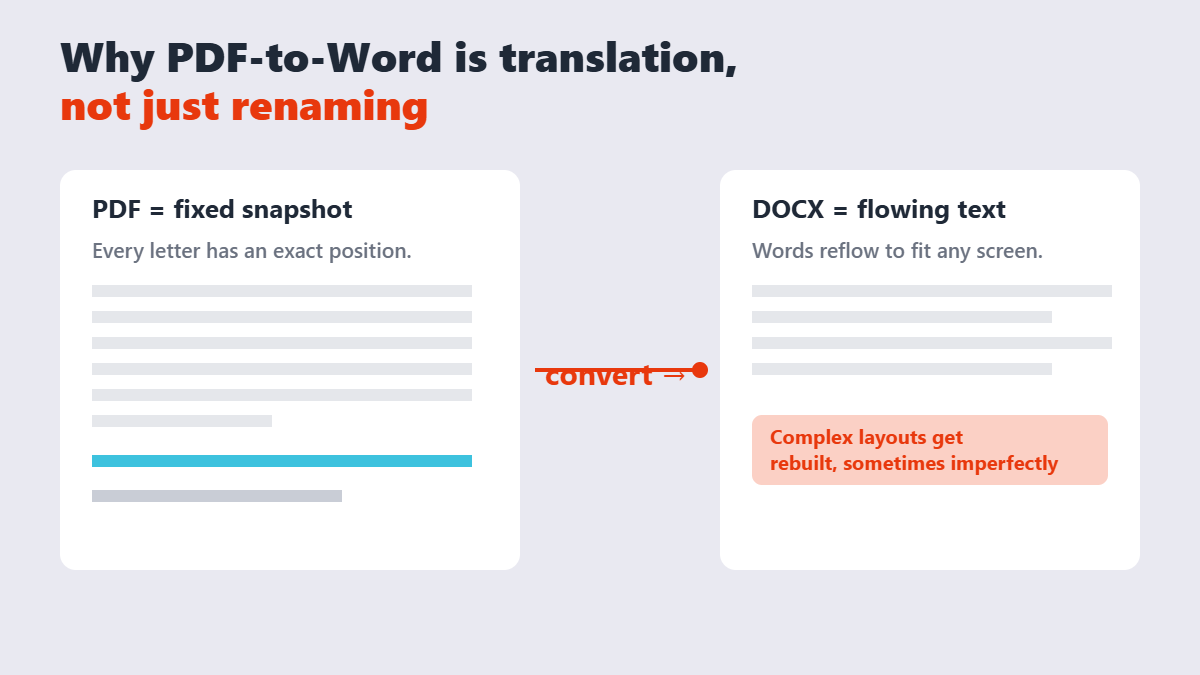
Everyone has hit this wall: someone sends you a PDF, and the first thing you need to do is change it. PDFs were never meant to be edited — they’re a print-ready snapshot — so “just edit the PDF” actually means converting it into a format that flows, like Word’s .docx. Done well, you get a real editable document. Done carelessly, you get a jumble of misaligned text boxes.
Contents
- What converts cleanly (and what doesn’t)
- How to convert a PDF to Word, step by step
- Scanned PDFs: the OCR caveat
- Where your file goes during conversion
- The 60-second post-conversion checklist
- FAQ
What converts cleanly (and what doesn’t)
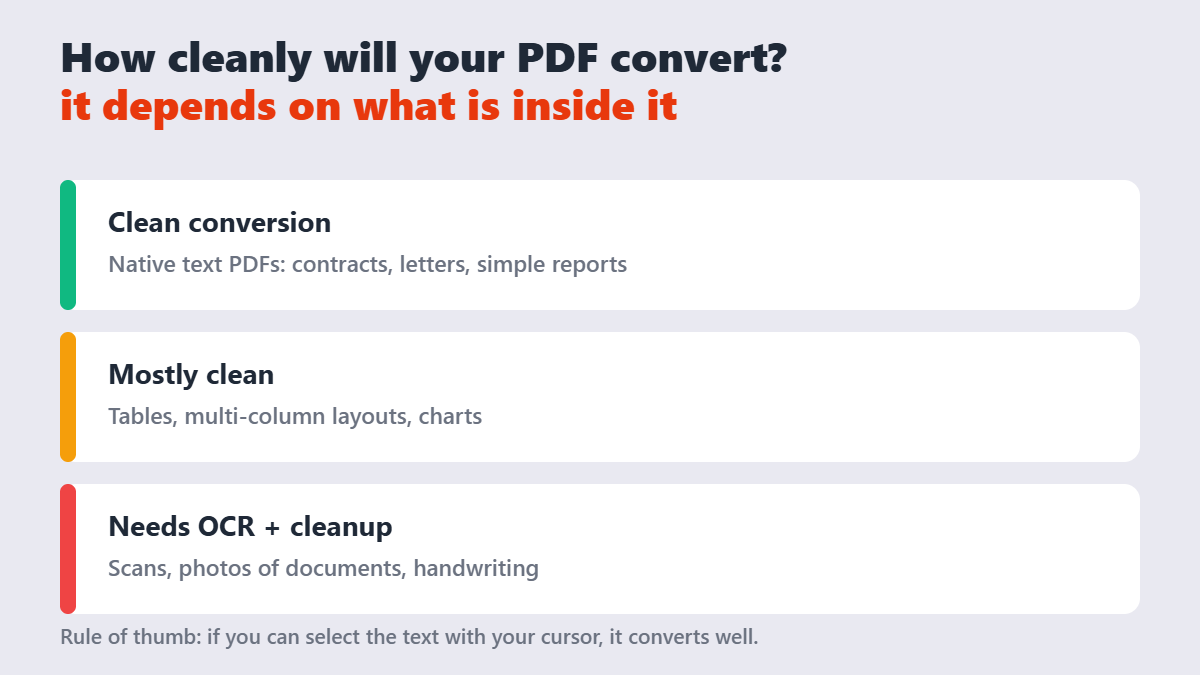
Conversion quality is decided long before you press the button — by what’s inside the PDF:
| PDF contents | Expected result | Extra work |
|---|---|---|
| Native text (contracts, letters, resumes) | Near-identical .docx, fonts and spacing carried over | None usually |
| Tables and multi-column layouts | Structure rebuilt; column order occasionally shuffled | Light touch-up |
| Scanned pages (image-only) | Recognized text via OCR — accuracy depends on scan quality | Proofread everything |
The quick test: open the PDF, try to select a sentence with your cursor. If the text highlights, you’re holding a native PDF and conversion will be smooth. If you can’t select anything, it’s a scan — see the OCR section below.
How to convert a PDF to Word, step by step
- Open the PDF to Word converter and upload your file. The transfer runs over an encrypted connection, and the file is deleted from the server after processing — this tool is one of the site’s browser-based converters, since rebuilding a .docx needs more horsepower than a browser.
- Wait a few seconds while the layout, fonts, and tables are reconstructed in Word’s format.
- Download the .docx and open it in Word, Google Docs, or LibreOffice.
- Spot-check the sections that matter — page breaks, tables, and any numbered lists. PDF-to-Word conversion reconstructs text runs, not the original formatting. The converter infers paragraphs from positions on the page, so a document built from tables or text boxes often arrives as a stack of frames rather than editable paragraphs.
Mainstream alternatives like Adobe’s converter and PDFgear do the same job; the differences are limits (file counts, sign-ups) and where your file travels.
Scanned PDFs: the OCR caveat
A scanned PDF is a photograph of paper. Converting it requires OCR — optical character recognition — which “reads” the image and produces text. Modern OCR is impressively good on clean scans and genuinely bad on crooked phone photos, faint faxes, or handwriting. Always budget five minutes to proofread an OCR-converted document; a wrong digit in a contract is worse than an unconverted file.
If your scan is crooked or dark, fix the scan first — adjust brightness and contrast on the pages before conversion and the OCR accuracy jumps noticeably.
Where your file goes during conversion
Honest breakdown, because this tool differs from most on the site: PDF-to-Word runs on the site’s servers (browser engines can’t rebuild .docx files). Your upload travels encrypted, gets processed, and is deleted right after — but if your document is legally sensitive, that’s a fact you should know before uploading. The privacy policy spells out exactly which of the 282 tools process locally and which use the server.
The 60-second post-conversion checklist
- Page count matches? Missing pages mean the converter dropped a section.
- Tables intact? Check column alignment, not just the borders.
- Fonts consistent? Odd substitutions show up as sudden style changes mid-paragraph.
- Numbers correct? Especially on OCR output — transposed digits are the classic failure.
My rule after years of converting: never trust a converted contract blind, even when it looks right. The errors hide in the places you don’t read twice.
FAQ
How do I convert a PDF to Word for free?
Upload the PDF to a free converter like the one on Sejdaa, wait a few seconds, and download the editable .docx. The usual cause of a shifted Word-to-PDF conversion is fonts the converter cannot find. Word documents reference fonts by name; if the converting machine does not have that font, it substitutes the closest match and every line break can move. No signup or payment is required for standard documents.
Will converting PDF to Word keep my formatting?
Native text PDFs convert with formatting nearly intact — fonts, spacing, and structure carry over. Complex tables and multi-column designs occasionally need minor realignment after conversion.
Can I convert a scanned PDF to an editable Word file?
Yes, but it requires OCR (text recognition). Clean scans convert well; low-quality photos of documents convert poorly and always need proofreading for recognition errors.
Why does my converted Word file look different from the PDF?
PDFs store fixed letter positions while Word documents reflow. The converter rebuilds positions into flowing text, and complex layouts sometimes shift in translation — it’s the format difference, not a broken tool.
Is it safe to upload confidential PDFs to an online converter?
Check the privacy model first. This converter uploads files to the site’s servers over an encrypted connection and deletes them right after processing. For maximum sensitivity, prefer tools that never upload — though true offline conversion requires desktop software.
Can I convert PDF to Word on my phone?
Yes — the converter works in mobile browsers. Since processing happens on the server, even large files convert fine on modest phones; you just upload, wait, and download the .docx.