The request is always urgent: a form that only accepts PDFs, an expense report due tonight, a landlord who wants “one file, not nine photos.” Converting photos to PDF is easy — the parts people get wrong are page size, ordering, and margins, which turn a tidy document into a shrunken, sideways mess.
Contents
- What people actually use this for
- How to convert JPG to PDF, step by step
- The three settings that decide quality
- Doing it on a phone
- Beyond the basics
- FAQ
What people actually use this for
| Situation | Photos involved | What matters |
|---|---|---|
| Expense reports | Receipt photos | Order, one page per receipt |
| KYC / ID submissions | ID front + back | Correct sequence, portrait orientation |
| Property handovers | Room photos | Reasonable file size, date order |
| Assignments / submissions | Scanned handwritten pages | Consistent A4 pages, readable margins |
How to convert JPG to PDF, step by step
- Open the Image to PDF tool and drop in your JPGs (PNGs and other formats work too). The conversion runs entirely in your browser — photos of IDs and receipts never touch a server.
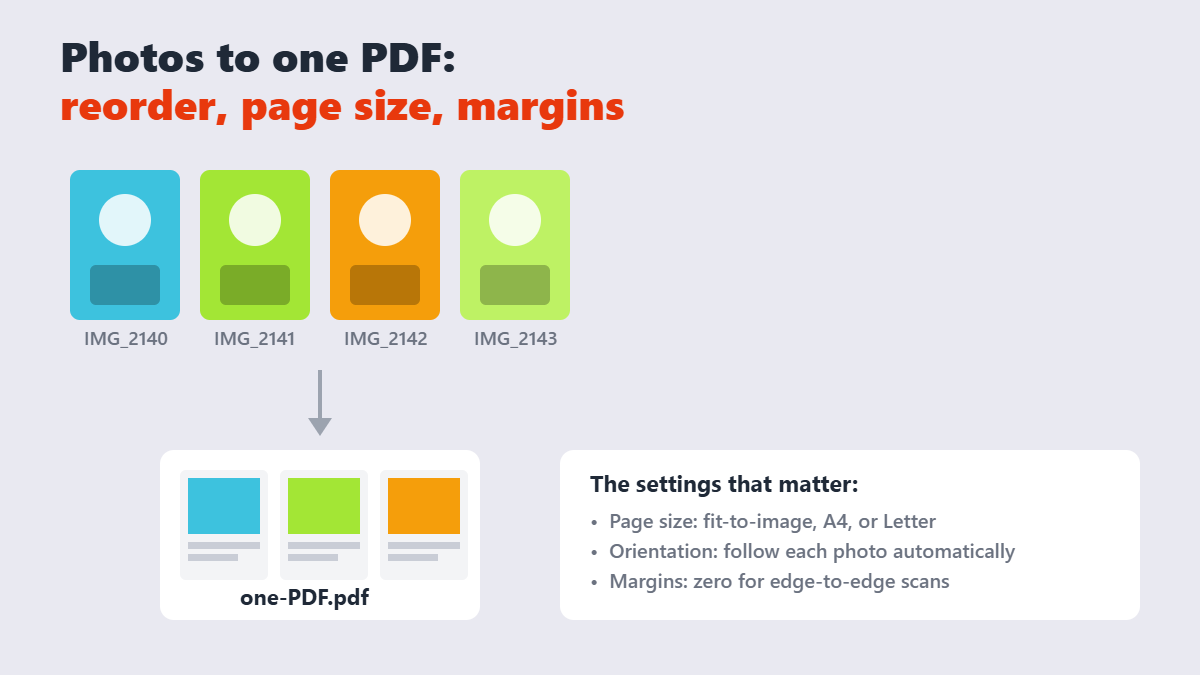
- Drag the thumbnails into order. The PDF’s page order follows this sequence, so fix it here, not after.
- Choose the page setup — fit-to-image, A4, or Letter — and orientation. For scanned documents, A4 with small margins looks the most “official.”
- Convert and download the single PDF.
The three settings that decide quality
Page size: “fit to image” keeps each photo at full size with no borders — right for photo collections. “A4/Letter” standardizes pages for printing and portals — right for scans and documents.
Margins: zero margins for receipts (every pixel of that total matters), small margins for submissions that might get printed.
Orientation: a portrait photo forced onto a landscape page gets rotated or letterboxed. Good converters follow each image’s own orientation automatically — check the preview so nothing lands sideways.
If the combined file comes out heavy, the photos were probably huge to begin with — compress the images first and the PDF shrinks with them.
Doing it on a phone
The browser tool works in mobile Safari and Chrome — photograph, convert, and email the PDF without ever touching a computer. Phones also have built-in routes: iPhone’s Files app prints selected photos to PDF via the share sheet, and Google Photos on Android has a scan feature. Both work, but neither lets you reorder comfortably — which is exactly what the browser tool is better at. The three web formats differ in what they keep. JPEG discards detail permanently to shrink size, PNG stores every pixel losslessly and supports transparency, and WebP can do either — lossy or lossless — usually landing 25–35% smaller than an equivalent JPEG or PNG.
Beyond the basics
Three follow-ups worth knowing. If a page comes out sideways, fix it after the fact with Rotate PDF. If you need to remove a stray photo page, delete pages from the finished PDF. And if the portal wants the images inside an existing PDF instead, Merge PDF & Image interleaves photos with existing pages in one pass.
One opinion from too many expense reports: photograph receipts on a dark surface with flash off. The border makes auto-cropping reliable, and no tool fixes a blurred photo — sharpening tools can help a little, but garbage in, garbage out.
FAQ
How do I convert JPG to PDF for free?
Drop your JPGs into a free browser-based converter like the one on Sejdaa, arrange the order, choose the page size, and download one combined PDF — no signup, no upload of your photos.
How do I combine multiple photos into one PDF?
Add all the images to the converter at once, drag the thumbnails into the order you want, and convert — each photo becomes one page in the single output file.
Will converting JPG to PDF reduce image quality?
No. The images are embedded at their original resolution; quality loss only happens if you later compress the PDF or the photos were low quality to begin with. JPEG has no alpha channel at all, so any transparency in the source is filled with white (or another colour you choose) the moment you save as JPEG. PNG and WebP both carry alpha.
How do I convert photos to PDF on my phone?
Open the converter in your mobile browser, select the photos from your gallery, order them, and download. iPhone’s Files app and Google Photos on Android also offer built-in print-to-PDF routes.
What page size should I use for scanned documents?
A4 or Letter with small margins, matching where the document will be printed or submitted — it looks official and prints without awkward scaling.
Why is my PDF file so large after converting photos?
Phone photos are often 3-8 MB each. Compress the images before converting, or compress the finished PDF — quality loss at web-appropriate settings is usually invisible.