Every week someone tries to email a 40 MB scan and discovers their mail provider has other plans. Gmail caps attachments at 25 MB, Outlook at 20 MB, and plenty of government portals are stricter still. The fix is almost never “buy better software” — it’s understanding what’s making the file heavy in the first place.
This guide walks through five free ways to compress a PDF, ranked by how often they work, plus the mistake that quietly ruins quality when people rush.
Contents
- Why PDFs get so big
- Method 1: Compress it in your browser
- Method 2: Compress from Word or your PDF app
- Method 3: Downsample the images (DPI math)
- Method 4: Split the PDF instead
- Method 5: Send a link, not a file
- How much smaller can it actually get?
- The mistake that ruins quality
- FAQ
Why PDFs get so big
Text is practically weightless. A 200-page contract’s words might occupy a couple of megabytes. What bloats files is everything wrapped around the text: scanned page images, embedded fonts, logos at print resolution, and the occasional attachment someone dragged in years ago.
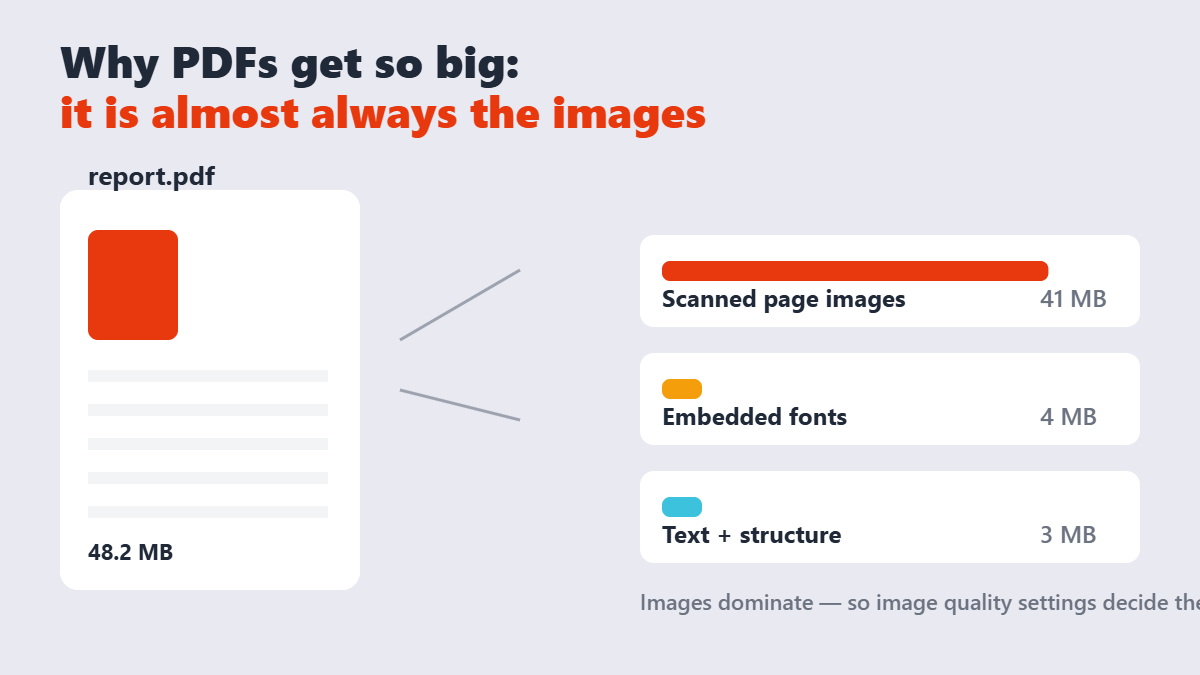
That matters because the fix follows the cause. If images dominate, compression that resamples images will crush the size. If the file is already mostly text, no compressor on earth can shrink it much — you’d be looking at font subsetting or splitting, not compression.
Method 1: Compress it in your browser (fastest, works 80% of the time)
The Compress PDF tool on Sejdaa runs entirely in your browser: the file loads locally, gets re-encoded, and you download the result without anything being uploaded. For confidential documents — contracts, medical paperwork, anything with a National ID on it — that privacy difference is the whole reason to care which tool you pick.
- Drop the PDF into the tool and let it load.
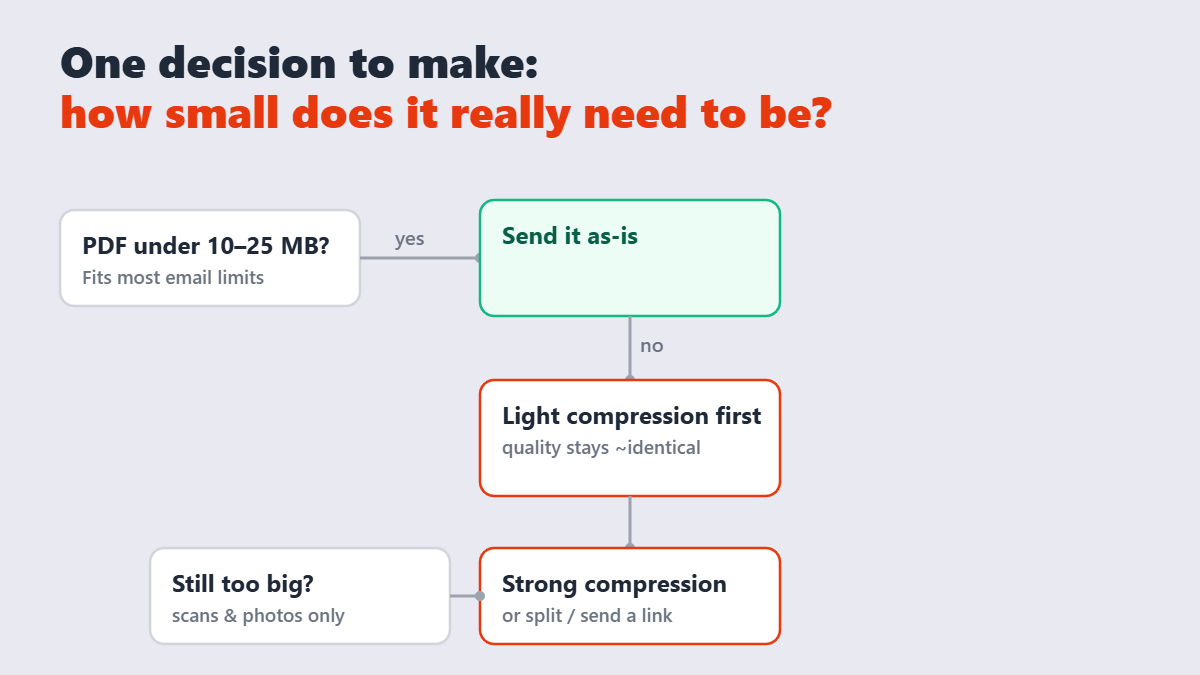
- Start with a medium setting, not maximum. Watch the estimated output size.
- Download and open the result next to the original. Check the pages with fine print and photos first.
- If it’s still too big and quality still looks perfect, compress again with a stronger setting.
Two passes like this usually beat one aggressive pass, because you can see exactly where quality starts to give way.
Method 2: Compress from Word or your PDF app
If the PDF came from Word, the cheapest compression is going back to the source. Word’s File → Save As dialog has a “Minimum size (publishing online)” option that re-encodes images before the PDF is even made — often cutting a 30 MB export to under 10 MB with zero visible difference on screen. Desktop PDF apps (Acrobat, PDF-XChange, Preview on Mac) have “Reduce File Size” or “Export with Quartz filter” options that do the same job offline.
The catch: re-exporting can shift layout on complex documents. If pixel-exact fidelity matters — legal exhibits, print-ready artwork — compress the finished PDF (Method 1) instead of regenerating it.
Method 3: Downsample the images yourself (the DPI math)
Scanners and phone cameras default to resolutions no screen needs. The arithmetic is simple:
| Use | Sensible DPI | Why |
|---|---|---|
| Screen reading, email, web upload | 96–150 DPI | Monitors can’t show more; extra pixels are dead weight |
| Standard office printing | 200–300 DPI | Laser printers top out around 600; 300 looks identical on paper |
| Professional print shop | 300+ DPI | Only here does anything above 300 earn its file size |
A scan captured at 600 DPI contains four times the pixels of the same page at 300 — and every one of them inflates the PDF. Resampling scans to 150–200 DPI for screen sharing is the single biggest win available, and it’s what the “medium” settings inside compressors are doing behind the scenes. If you’d rather control it directly, convert pages to images at a chosen resolution, then rebuild a PDF from them — clunkier, but surgical.
Method 4: Split the PDF instead
Sometimes the recipient only needs part of the document. The whole 48 MB contract is heavy; the six pages relevant to this week’s decision are light. A browser-based split tool extracts the range you need in seconds, and the attachment problem evaporates without any quality trade-off at all — splitting never re-encodes anything.
Method 5: Send a link, not a file
For anything over ~20 MB, a cloud link (Drive, Dropbox, WeTransfer) sidesteps attachment limits entirely, and the recipient always gets the latest version. It’s the honest answer when a file resists compression — audio-embedded portfolios and pre-press artwork belong here. Just remember the recipient now depends on your link staying alive; for anything contractual, attach a compressed copy too.
How much smaller can it actually get?
Depends almost entirely on what’s inside. Honest ranges, from real-world compression runs:
| PDF type | Typical reduction (medium setting) | Quality risk |
|---|---|---|
| Text-only reports, invoices | 50–80% | None visible — mostly font and structure cleanup |
| Office exports with charts/logos | 40–70% | Slight softening of image edges possible |
| Scanned documents (image pages) | 60–85% | Real risk if overshot — text can fuzz at strong settings |
| Already-compressed PDFs | 5–20% | Nothing left to safely remove |
Beware tools promising “90% smaller, always.” That claim usually means they’re downsampling everything to thumbnail quality — technically smaller, practically ruined.
The mistake that ruins quality
Here’s my contrarian take: “strong compression” is almost always the wrong default. People see three buttons and assume the middle one is for experts. They grab “strong” or “extreme,” the file drops to 2 MB, and then the print shop calls asking why every scanned signature looks like a watercolor. Strong settings throw away image data that never comes back.
The disciplined order is: light or medium first, eyeball the fine print, escalate only if the size still fails. If medium fails and strong ruins it, the file is telling you to split it or send a link instead. Compression is a negotiation, not a demolition.
FAQ
Does compressing a PDF reduce quality?
Light and medium compression are usually invisible — they trim image resolution your screen couldn’t display anyway. Strong compression is where quality visibly degrades, especially on scans. Always compare the compressed file against the original before sending it on.
What is the maximum file size I can email?
Gmail allows attachments up to 25 MB and Outlook around 20 MB, counting the file after email encoding inflates it by roughly a third. Aim for a final file under 15 MB to be safe across providers.
How do I compress a PDF to exactly 2 MB or 1 MB?
Most compressors work with quality levels, not exact targets. The practical approach: compress on medium, check the size, re-run with stronger settings until you’re under the limit. For hard targets like 300 KB on a form, expect to also downsample images or split the file.
Why is my compressed PDF still large?
Either the content is mostly text (nothing to squeeze) or the images were already optimized before you got the file. If compression barely moves the needle, split the document or share it as a cloud link instead.
Is it safe to upload a confidential PDF to an online compressor?
It depends entirely on the tool. Browser-based compressors like the one on Sejdaa never upload your file — processing happens on your own device. Server-based tools upload everything, so check their deletion policy before handing over anything sensitive.
Can I compress a PDF on my phone?
Yes. Browser-based tools work in mobile Safari and Chrome — the compression runs on the phone’s processor, so very large files may be slow, but normal documents handle fine.