Every oversized image on a website is a tax every visitor pays. A single 4 MB photo can triple a page’s load time, and page speed feeds directly into search rankings and bounce rates. The good news: image compression is the rare optimization where the default settings are almost enough, if you understand the one slider that matters.
Contents
- The only slider that matters
- JPG, PNG, or WebP: pick by content
- How to compress images, step by step
- What compression can’t fix
- A workflow for whole websites
- FAQ
The only slider that matters
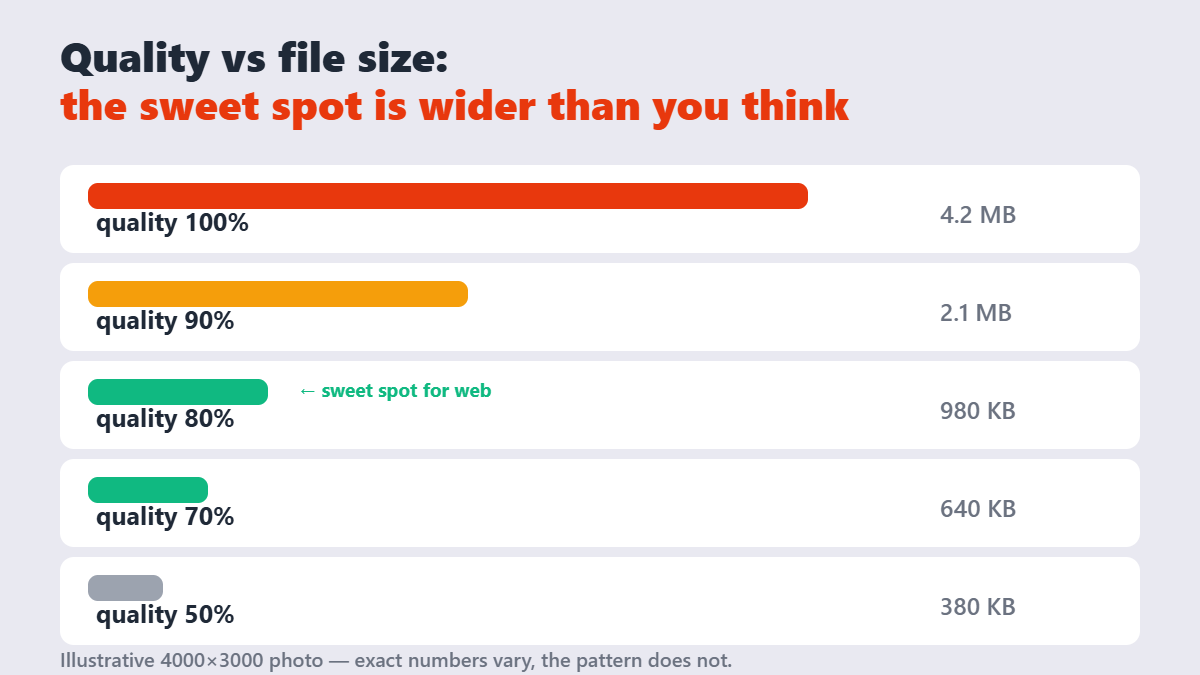
JPG-style compression throws away image data your eye barely registers — and the file-size payoff is wildly non-linear. Dropping from quality 100 to 90 halves the file; dropping to 80 halves it again, and that’s where the sweet spot lives. As Google’s web.dev guidance puts it, modern formats and sensible quality settings deliver smaller files with no visible penalty.
| Quality | Typical result | Use it for |
|---|---|---|
| 90-100% | Huge files, no visible gain | Archival masters, print work |
| 80% | 40-80% smaller, no visible loss on screen | Websites, email, uploads |
| 70% | Smaller still, close inspection needed | Thumbnails, background images |
| Below 60% | Visible artifacts around edges and text | Almost nothing |
The honest caveat: “no visible loss” assumes screen viewing. Prints show compression artifacts that screens hide — for print, stay at 90%+.
JPG, PNG, or WebP: pick by content
Photos compress best as JPG or WebP. Graphics with flat colors, text, and sharp edges belong in PNG — compressing a screenshot as JPG smears its text. WebP is the modern all-rounder: benchmarks put it 25-35% smaller than a comparable JPEG, with a lossless mode that beats PNG for graphics too. Every current browser renders it.
Transparency note: PNG and WebP keep transparent backgrounds; JPG doesn’t. If a logo needs its clear background, PNG or WebP are your only options.
How to compress images, step by step
- Open the Compress Image tool and drop your files in — JPG, PNG, and WebP all work. Compression runs locally in your browser; the photos never leave your device.
- Start at 80% quality and watch the size estimate update live.
- Compare the preview against the original at 100% zoom — check edges, text, and skin tones.
- If the file’s still too heavy, drop to 70% or convert to WebP for another cut at identical quality.
Batch compressing a whole folder works the same way — one setting, every file, one download.
What compression can’t fix
Compression squeezes existing pixels; it doesn’t add detail. Three things it can’t do: reverse a previous bad compression (re-compressing an already-compressed JPG compounds artifacts), recover detail lost by downsizing (use resizing for that, before compressing), or sharpen a blurry source (sharpening helps marginally at best). And it can’t make a 6000-pixel-wide photo sensible for a 800-pixel blog column — resize first, then compress. Order matters.
A workflow for whole websites
For a site refresh, the sequence that works: resize every image to its display size (never upload a 4000px photo for a 800px slot), compress at 80%, convert hero images and photos to WebP, and keep PNG for graphics with transparency. An hour of this typically cuts a page’s image weight by 70-90% — the cheapest speed upgrade available, and per compression guides across the industry, exactly the order that avoids wasted effort.
FAQ
How do I compress images without losing quality?
Use a browser-based compressor at 70-80% quality for photos — the reduction (typically 40-80%) is visually invisible on screens. Keep PNG for graphics with text or transparency, and consider WebP for another 25-35% savings at the same quality.
What image quality should I use for the web?
80% JPG/WebP quality is the standard sweet spot for photos. Thumbnails and decorative backgrounds tolerate 70%. Anything bound for print deserves 90% or more.
Why is my compressed image still large?
Usually the dimensions, not the quality — a 6000×4000 photo is huge at any quality. Resize it to the size it’s actually displayed at, then compress.
Does compressing an image reduce its resolution?
No — compression only discards visual data the eye barely notices; dimensions stay identical. Resizing changes dimensions; compressing changes file weight. They’re different operations.
Is WebP better than JPG?
For the web, generally yes — 25-35% smaller at equivalent quality, with transparency support. Every current browser renders it. The main exceptions are older software compatibility and print workflows.
Can I un-compress an image to get quality back?
No — compression discards data permanently. Always keep the original file and compress a copy when you need a lighter version.