You filled out the form perfectly, submitted it, and the court portal showed a blank page. Or the client opened the contract and dragged your signature block two inches left as a joke. Both are the same failure: an unflattened PDF, where your careful answers are still live, editable form fields instead of permanent ink.
Flattening is the two-second step that turns a document full of moving parts into exactly what paper would be â fixed, final, and identical for everyone who opens it. Adobe’s own guide describes it as removing “any interactivity or editable elements like form fields or annotations.”
Contents
- What flattening actually does
- Five situations that demand it
- How to flatten a PDF, step by step
- Flatten vs password vs convert: which lock?
- The one mistake to avoid
- FAQ
What flattening actually does
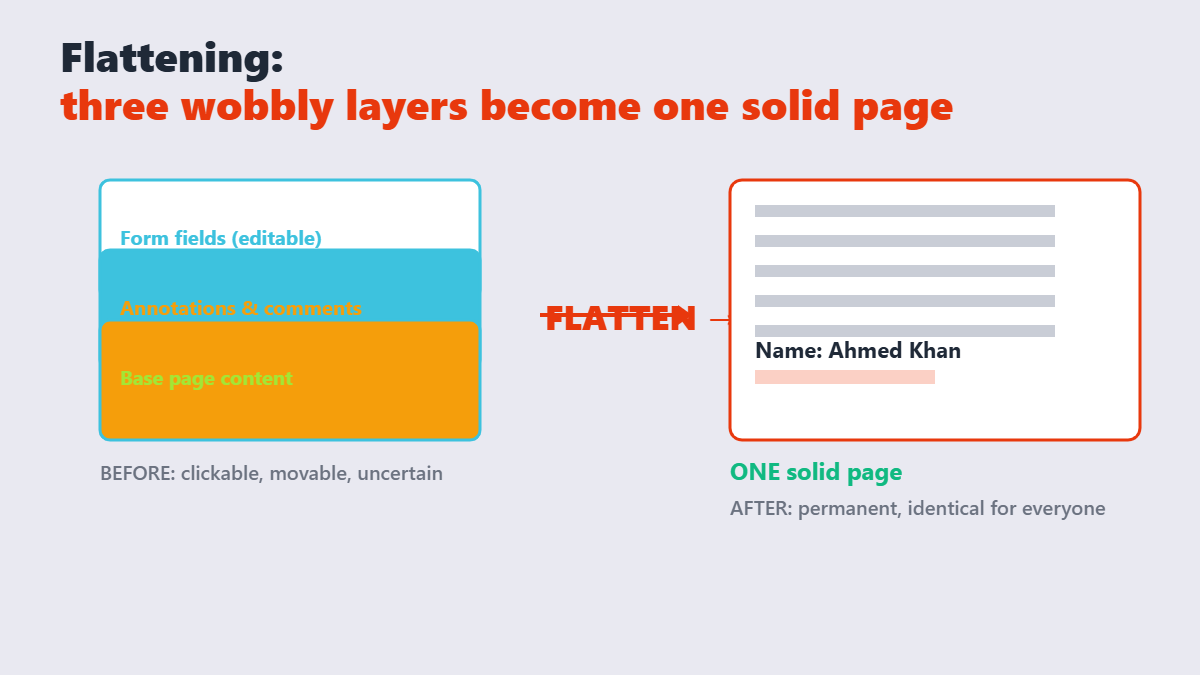
A fillable PDF is two layers: the static page, and a stack of interactive objects floating on top â form fields, checkboxes, comments, highlights, form data. Your PDF reader edits that top layer on request. Flattening merges both layers into one, converting every field’s current value into ordinary page content, like it was printed there. Flattening a form removes its interactive fields permanently. If the form will ever need editing again, keep the unflattened original — the flattened PDF cannot be un-flattened, because the field objects are discarded rather than hidden.
| Element | Before flattening | After flattening |
|---|---|---|
| Filled form fields | Click and edit anytime | Fixed text on the page |
| Comments & annotations | Movable, deletable objects | Merged into page content |
| Checkboxes | Toggleable | Permanent marks |
| Hidden revision data | Present in the file | Stripped with the layers |
Five situations that demand it
- Court and government e-filing. Portals like CM/ECF sometimes render form fields blank or garbled â filers have lost entire submissions this way. Federal courts, including the Fourth Circuit, explicitly tell filers to flatten before uploading.
- Signed contracts. A signature pasted as a movable annotation isn’t “signed” â it’s suggested. Flattening makes it permanent ink.
- Final records and archives. Invoices, HR forms, anything that must look identical in ten years.
- Sharing outside your team. Your internal comments and highlights should not travel with the document.
- Print reliability. Some printers choke on form layers; flattened files print exactly as displayed.
How to flatten a PDF, step by step
- Open the Flatten PDF tool and drop your file in â it processes entirely in your browser, so the completed form never leaves your device.
- Confirm everything you care about is filled in correctly first. Flattening preserves the current state, typos and all.
- Download the flattened copy. Fields, annotations, and form data are now part of the page.
- Verify: click where a form field used to be. Nothing should happen.
The classic alternative â Print â “Microsoft Print to PDF” â works too, and it’s what many court help pages document. The trade-off: printing re-renders the whole file, occasionally shifting quality or links, while a dedicated flattener only merges the layers.
Flatten vs password vs convert: which lock?
Three different jobs, constantly confused:
- Flatten locks content in place â what you see is what everyone gets. Use for filings and signed finals.
- Password-protect controls who can open the file. Use when the wrong eyes are the problem, not edits.
- Converting to images is flattening’s sledgehammer cousin â maximum fixity, no text selection. Use when even the underlying text structure must not survive.
My blunt take after watching documents circulate: flatten everything you sign, everything you file, and everything that leaves your organization final. The edit you prevent is always the one someone swears was accidental.
The one mistake to avoid
Flattening your only copy. The moment the fields merge, corrections mean refilling the entire form. Keep the original fillable file; flatten a copy for sending. This is not paranoia â it’s the difference between a two-minute fix and an afternoon of re-entering data.
FAQ
What does flattening a PDF do?
It merges form fields, annotations, comments, and layers into permanent page content. After flattening, filled values look the same but can no longer be clicked, edited, or removed â the document behaves like a scan or printout.
Why do courts require flattened PDFs?
E-filing systems can render unflattened form fields blank, garbled, or editable at the court’s end. Flattening merges every annotation, form field and layer into the page’s own content stream. Afterwards the fields are no longer interactive and the annotation objects are gone — which is why a flattened PDF is smaller and cannot be edited back. Flattening guarantees the court sees exactly what you see, with no live fields to corrupt or alter.
How do I flatten a PDF for free?
Drop the file into a browser-based flattener like the one on Sejdaa and download the result â processed locally, no upload, no signup. The Print-to-PDF route also works in a pinch.
Can a flattened PDF be un-flattened?
No â flattening permanently merges the layers. Keep the original fillable file if you might need to edit later.
Does flattening remove form data?
It removes the editable field structure while preserving the values visually. The data you entered stays visible on the page but no longer exists as retrievable form fields.
Will flattening change how my PDF looks?
Visually, no â the flattened copy should match the original exactly. If something looks different, your reader was displaying a field layer that the document itself didn’t contain.