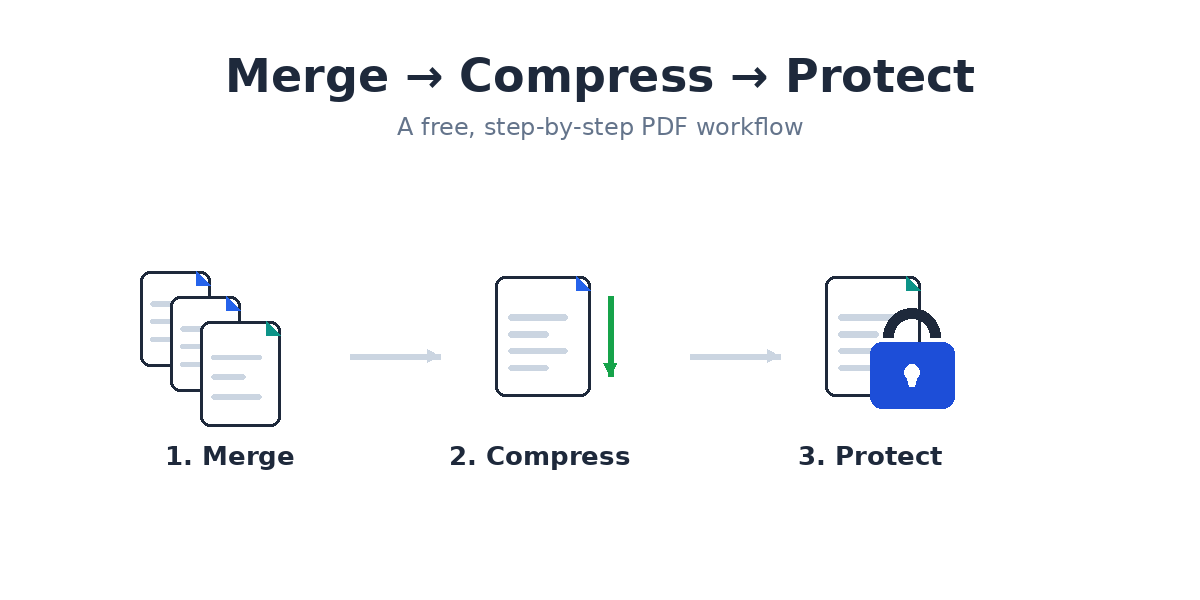
If you’ve ever needed to send someone a stack of scanned documents, an application packet, or a set of invoices, you’ve probably run into the same three problems: the files are scattered across separate PDFs, the combined file is too big to email, and there’s nothing stopping the wrong person from opening it if it ends up in the wrong inbox.
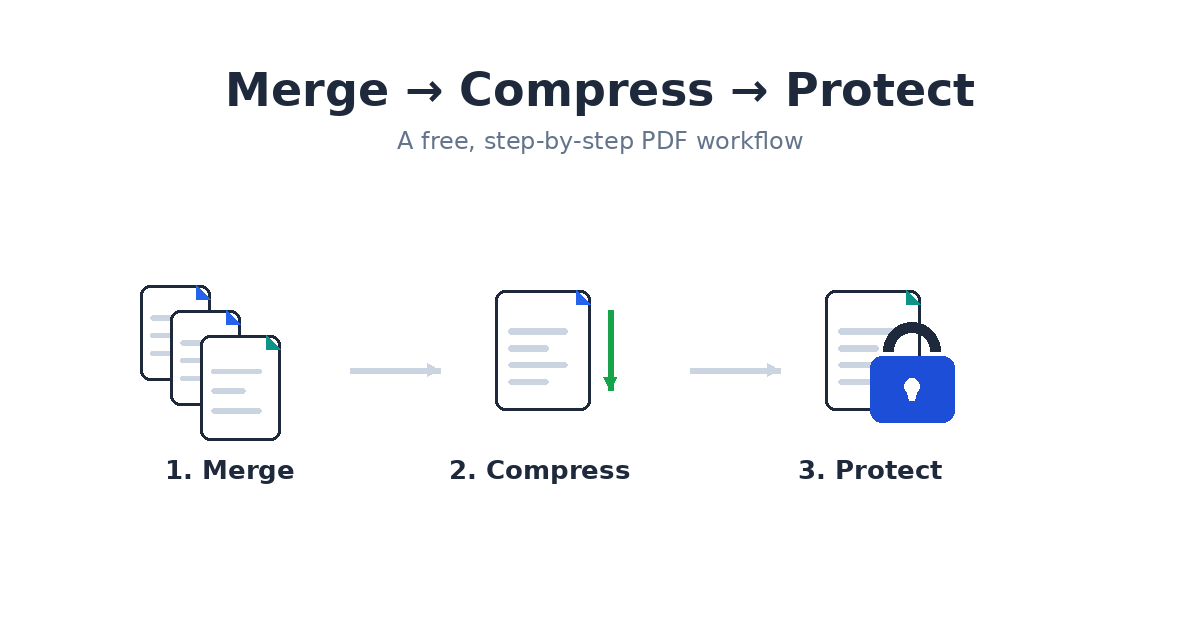
This guide walks through a complete, free workflow to fix all three at once: merge your PDFs into one file, shrink that file down to a manageable size, and lock it with a password — entirely in your browser, with no software to install and no account to create. It takes about five minutes the first time you do it, and closer to sixty seconds once you’ve done it once.
Contents
- What you’ll need
- Step 1: Merge your PDFs
- Step 2: Compress the merged file
- Step 3: Password-protect the result
- Common mistakes to avoid
- FAQ
| Step | Tool | What it does | Typical time |
|---|---|---|---|
| 1. Merge | Merge PDF | Combines files in your chosen order, rotates sideways scans | ~30 seconds |
| 2. Compress | Compress PDF | Shrinks the merged file to fit email limits | ~20 seconds |
| 3. Protect | Protect PDF | Adds an open password plus optional printing/copying locks | ~20 seconds |
Why You’d Want to Do This
This exact combination comes up constantly in ordinary situations:
- Job applications — combining a resume, cover letter, and portfolio into one attachment instead of three, then keeping it under the file size a job portal accepts.
- Tax season — merging scanned receipts, statements, and forms, then protecting the result because it contains financial details.
- Real estate and legal paperwork — combining signed pages, ID scans, and supporting documents into a single file that a bank or agent can open without a back-and-forth email chain.
- Freelance invoicing — merging an invoice with a signed contract or timesheet, compressed so it doesn’t bounce off an email size limit, and password-protected because it includes payment details.
- Medical or HR paperwork — bundling multiple forms into one document that needs to stay private in transit.
In every one of these cases, the actual problem isn’t “I need a PDF tool” — it’s “I need this document to be one file, a reasonable size, and safe to send.” That’s a three-step job, not a one-step job, which is why this guide covers all three in order.
What You’ll Need
Nothing beyond a web browser. Every tool in this guide runs client-side, meaning your files are processed on your own device and are never processed in your browser — which matters here specifically, since you’re often handling documents you’re about to lock down for privacy reasons anyway. There’s no sign-up, no watermark on the output, and no limit on how many times you can use each tool.
Step 1: Merge Your PDFs Into One File
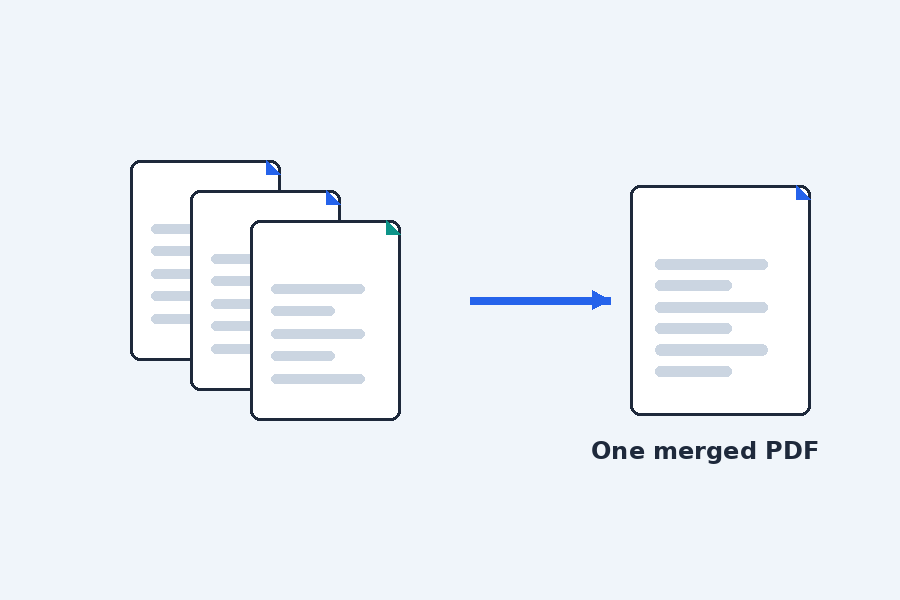
Start with Merge PDF, which combines multiple PDF files into a single document.
- Open the Merge PDF tool and drag in every file you want combined — scanned pages, forms, signed documents, whatever you’re bundling together. You can add up to 20 files per session, each up to 50MB.
- Check the order. Files are merged in the order they’re listed, and each one shows as a thumbnail so you can confirm you’re looking at the right document before committing.
- Drag to reorder if needed. If your cover letter needs to come before your resume, or a signature page belongs after the contract instead of before it, just drag the thumbnails into the correct sequence.
- Fix any sideways pages. Scanned documents often come out rotated. Rather than re-scanning, rotate the affected page directly in the tool before merging (or use the dedicated Rotate PDF tool first if you’d rather handle it as a separate pass).
- Merge and download. You’ll get a single PDF with your original formatting, fonts, and image quality intact — no watermark, no branding added.
If your source material includes photos or scanned images rather than PDFs — say, a photographed signature page or a picture of a receipt — you don’t need to convert those separately first. The Merge PDF & Image tool handles PDFs and images together in the same merge.
Step 2: Compress the Merged File
Gmail caps attachments at 25 MB and Outlook at 20 MB, and the encoding email adds on top can push a file over either limit — which is exactly why this middle step exists.
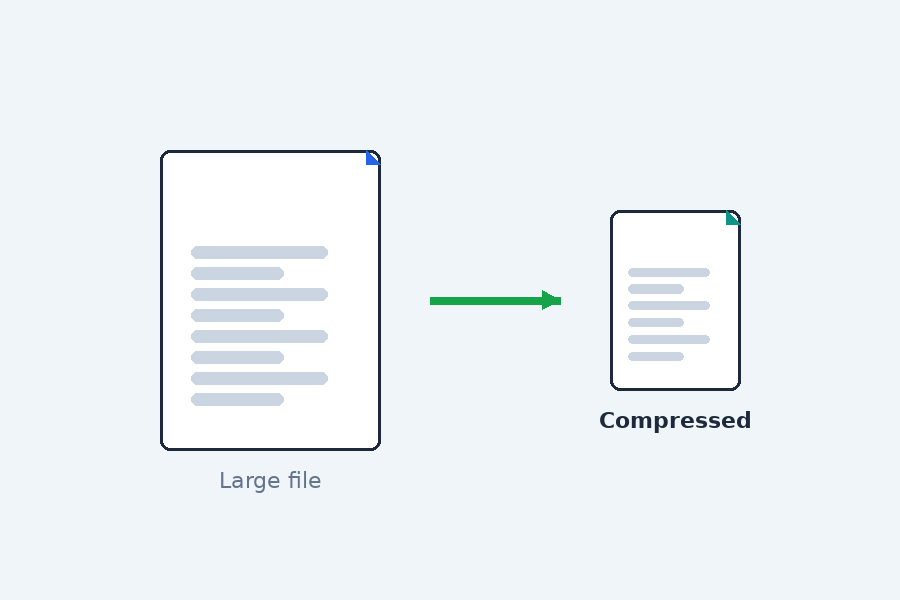
A merged file is naturally larger than any of its parts, and if your originals were scanned at high resolution, it can get big fast — sometimes too big for an email attachment or an upload form with a strict size limit. That’s where Compress PDF comes in.
- Upload your merged PDF from Step 1.
- Choose a compression level. Light compression barely touches visual quality and gives a moderate size reduction — good for text-heavy documents you’ll be reading on screen. Strong compression is better for scanned, image-heavy files where you mainly need the content legible rather than pixel-perfect.
- Check the estimated output size before downloading, so you know whether you’ve hit your target (for example, staying under a 10MB or 25MB email limit) without having to guess and check repeatedly.
- Download the compressed version. This is the file you’ll carry into the final step.
As a rule of thumb: scanned documents and photo-heavy PDFs often shrink by 50-80% with barely noticeable quality loss, while PDFs that are mostly typed text won’t compress as dramatically simply because there isn’t much redundant image data to remove in the first place.
Step 3: Password-Protect the Final PDF
The password you set here uses standard PDF encryption, so the file prompts for a password in Adobe Reader, Preview, and every mainstream viewer — no special software needed on the recipient’s side.
With your file merged and sized correctly, the last step is locking it so only the intended recipient can open it. Use Protect PDF for this.
- Upload your compressed PDF.
- Set an open password. This is the password someone will need to enter before the PDF will even display. Choose something you can share securely with the recipient — ideally through a different channel than the one you’re sending the file itself through (a text message rather than the same email, for instance).
- Optionally restrict printing or copying if you want an extra layer of control over what a recipient can do with the file once it’s open, beyond just requiring a password to view it.
- Download the protected file. This is the version you actually send. The encryption used is standard PDF security, so it’ll work in any PDF reader that supports password-protected files — no special software required on the recipient’s end either.
One important detail: there’s no password recovery built into this or any similar tool. If you forget the password, there’s no way to get back in. Store it somewhere reliable — a password manager is ideal — before you close the tab.
Adjustments Worth Making Along the Way
The three steps above cover the core workflow, but a few related situations come up often enough to mention:
- Need to remove a page before merging? Use Delete PDF Pages to drop a blank scan, a duplicate, or an outdated cover page before it ever makes it into the merged file.
- Need to reorder pages after merging, not before? Reorder PDF Pages lets you fix the sequence on the already-merged document instead of starting over.
- Sending a draft, not a final version? Add a “Draft” or “Confidential” watermark with Watermark PDF before you compress and protect it, so there’s no confusion about the file’s status.
- Only need to split it apart later? If the recipient only needs part of the merged file down the line, Split PDF can pull specific pages back out without affecting your original.
- Need it back in an editable format? If someone needs to edit the merged document rather than just read it, PDF to Word converts it into an editable .docx while keeping the formatting intact.
- Received a protected PDF and need to remove the password yourself? If you already know the password and just want to stop re-entering it, Unlock PDF handles that.
- Need a strong password to begin with? If you’re protecting several documents and want a genuinely random password rather than something you’ll reuse, the Password Generator creates one in a click.
Common Mistakes to Avoid
Compressing before merging instead of after. Compress the final, merged file rather than each source file individually — compressing five separate files and then merging them gives you less control over the final size than merging first and compressing once.
Sending the password in the same message as the file. If someone intercepts the email, they get both the file and the key to open it. A quick text message with just the password is a meaningfully safer split.
Assuming compression always shrinks the file dramatically. A 40-page text contract won’t compress the way a stack of scanned photos will. If size is still an issue after strong compression, consider whether every page genuinely needs to be included, or whether splitting the material into two separate documents makes more sense.
Forgetting to check page order before merging. It’s much faster to drag thumbnails into the right order during the merge step than to notice the mistake after you’ve already compressed and password-protected the file — since fixing it means starting the whole sequence over.
Frequently Asked Questions
Is this entire workflow really free?
Yes. Merging, compressing, and password-protecting a PDF are all free with no sign-up, no subscription, and no limit on how many times you use them.
Will my files be processed in your browser at any point?
No. Each tool in this workflow processes your files directly in your browser. Nothing is uploaded, stored, or transmitted at any stage.
How much can I expect the file size to shrink?
It depends heavily on content. Scanned or photo-heavy PDFs often shrink by 50-80%. Text-based documents compress less dramatically since there’s less redundant image data to remove.
Can I remove the password later if I need to?
Yes, as long as you know the password. The Unlock PDF tool removes password protection from a file you already have access to.
What if I need to merge images along with my PDFs, not just PDFs?
Use Merge PDF & Image instead of the standard merge tool — it accepts JPG, PNG, and WEBP files alongside PDFs in the same merge.
Does password-protecting a PDF affect its formatting or quality?
No. Adding a password only affects who can open the file — the text, images, layout, and formatting are exactly as they were before protection was applied.
What’s the difference between an “open” password and other PDF restrictions?
An open password is required before the document will display at all. Separately, you can restrict actions like printing or copying even after the file is opened — those are optional extra controls on top of the open password, not a replacement for it.
Related Free Tools
Beyond the core workflow above, a few other tools are worth knowing about for related PDF tasks:
- Crop PDF — trim unwanted margins or scan borders before merging
- Image to PDF — turn a set of photos into a PDF before combining them with the rest of your documents
- Repair PDF — attempt to fix a corrupted PDF before it goes into your merge
- PDF to Image — pull a single page out as an image once your final document is ready
Putting It All Together
The full sequence, start to finish: merge your source files with Merge PDF, shrink the result with Compress PDF, and lock it down with Protect PDF. Each step takes under a minute once you know where you’re headed, none of it requires installing anything, and your files never leave your device along the way. The next time you’re staring at a folder of documents that need to become one safe, appropriately sized file, this is the whole process.