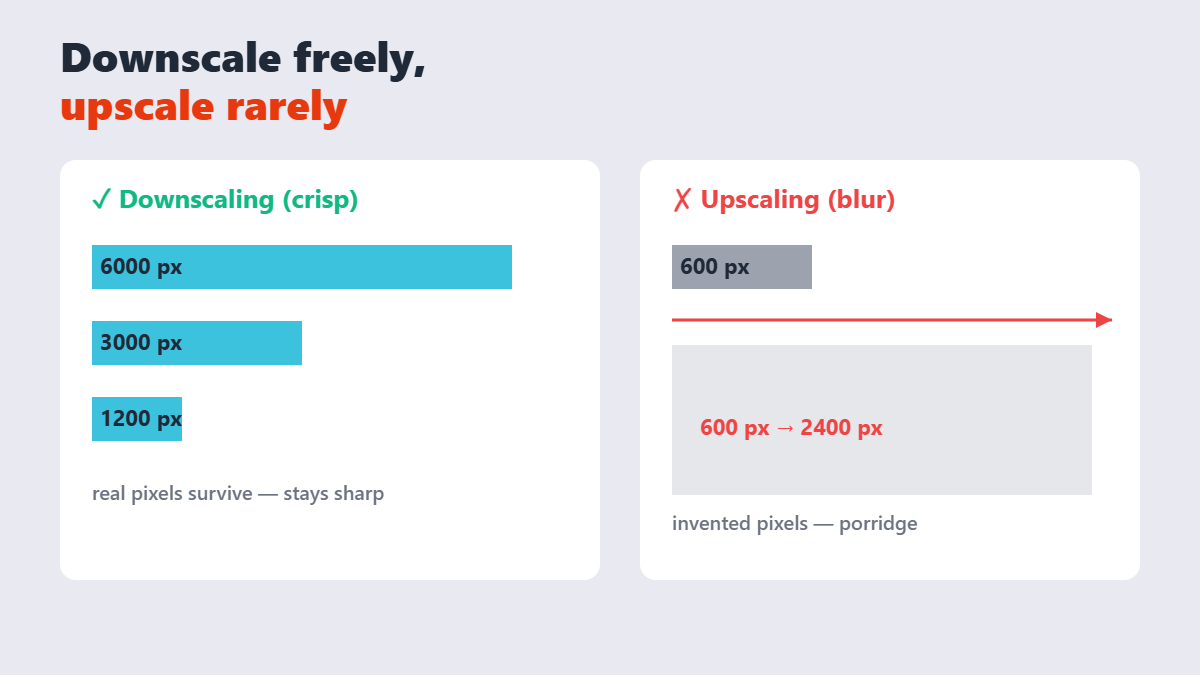
Resizing sounds like the simplest edit in the world, and it is â until a 6000-pixel camera photo lands in an 800-pixel blog slot and suddenly the “same image” is either 10Ã too heavy or blurry beyond rescue. The entire skill is knowing one rule: downscale freely, upscale rarely.
Contents
- The one rule: downscale, don’t upscale
- How to resize an image, step by step
- The sizes that actually matter
- Percentages vs exact pixels
- Resize, then compress â in that order
- FAQ
The one rule: downscale, don’t upscale
Shrinking throws pixels away in a controlled way â done properly, a downscaled photo looks crisp because the surviving pixels are real data. Enlarging invents pixels that were never captured, which is why stretched images turn to porridge. As the image scaling literature puts it, downscaling preserves quality while upscaling manufactures blur.
Practical consequence: shoot and store big, resize down per destination. Instagram’s own help center notes the platform downsizes anything wider than 1080px automatically â but handing it a 400px photo and hoping it enlarges is how you get mush.
How to resize an image, step by step
- Open the Resize Image tool and drop your photo in. It runs locally in your browser â nothing uploads.
- Enter exact pixels (1920 wide, 1080Ã1350, whatever the destination needs) or scale by percentage. Keep the aspect ratio locked unless you deliberately want to stretch.
- Check the preview at 100% zoom â text and edges are where bad resampling shows.
- Download. Then compress if the file’s still heavy â compression after resizing is the correct order.
The sizes that actually matter
| Destination | Recommended size | Note |
|---|---|---|
| Instagram feed (square / vertical) | 1080Ã1080 or 1080Ã1350 | Vertical 4:5 takes more screen space |
| Instagram Stories / Reels | 1080Ã1920 | 9:16 full screen |
| X (Twitter) in-feed | 1200Ã675 (16:9) | Some guides suggest 1600Ã900 headroom |
| Blog content width | 1200-1600 px wide | Match your theme’s content column Ã2 for retina |
| Email headers | 600-1200 px wide | Most clients clip anything wider |
The meta-pattern, straight from the social platform guides: upload slightly larger than the display size and let the platform downscale, never smaller and hope.
Percentages vs exact pixels
Percentages (50%, 25%) are perfect for quick jobs â halving a 4000px photo to 2000px is two keystrokes, and stepping down in halves avoids the aliasing artifacts of aggressive single-step shrinks. Exact pixels are non-negotiable when a form or platform demands precise dimensions â passport uploads, marketplace listings, banner slots. Good resizers offer both; use the one the job names.
One opinion from resizing thousands of site images: resizing in steps beats one giant jump. Going 6000 â 800 in one drop can alias fine patterns; two steps (6000 â 3000 â 800) with a high-quality resampler stays cleaner. It’s a small thing that shows.
Resize, then compress â in that order
Compression squeezes every pixel in the file; resizing deletes pixels. If you compress first and resize after, you’ve spent compression on pixels you were about to throw away â and the resize re-introduces softness into already-squeezed data. The correct sequence: resize to display size, then compress at 80%, then optionally convert to WebP. Same three tools, wrong order, half the benefit.
FAQ
How do I resize an image without losing quality?
Downscale (never upscale) using a quality resizer with the aspect ratio locked â shrinking done properly keeps images crisp because the remaining pixels are real data. For enlarging, there is no free lunch; AI upscalers help but cannot invent true detail.
What size should images be for Instagram?
1080Ã1080 for square posts, 1080Ã1350 for vertical (4:5 takes more screen space), and 1080Ã1920 for Stories and Reels. Instagram downsizes anything wider than 1080px automatically.
What’s the best size for blog images?
Match your theme’s content width, doubled for retina screens â typically 1200-1600px wide. Then compress at 80% quality to keep the file light.
Why is my resized image blurry?
Either you upscaled beyond the original size, or you shrank and enlarged in separate steps. Resizing is one-way; always go back to the original for a new size.
Does resizing reduce file size?
Yes, dramatically â fewer pixels means a smaller file even before compression. Resizing to display dimensions is the single biggest file-size win available.
Can I resize multiple images at once?
Browser-based tools like the one on Sejdaa accept batches â same dimensions applied to every file, downloaded individually or together.