A watermark is a sentence you’re saying without writing it in the document: this is not final, this belongs to us, or this copy is yours. Done well, it’s invisible to reading and impossible to ignore as a label. Done badly, it buries the contract text it was supposed to protect.
Contents
- Pick the watermark for the job
- The opacity rule that prevents regret
- How to watermark a PDF, step by step
- Three watermark mistakes
- When a watermark isn’t enough
- FAQ
Pick the watermark for the job
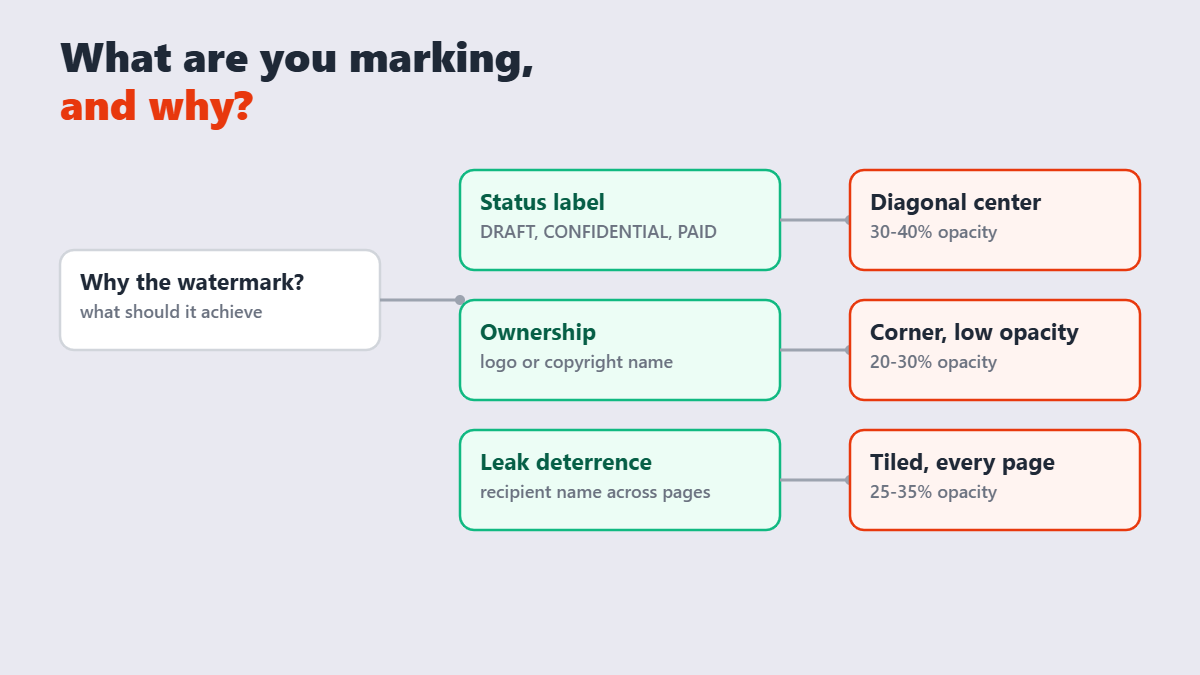
| Purpose | Best type | Typical look |
|---|---|---|
| Status label (drafts, reviews) | Text, diagonal center | “DRAFT” at 30-40% opacity |
| Ownership / branding | Logo, corner | Small mark at 20-30% opacity |
| Leak deterrence | Recipient name, tiled or diagonal | Personalized text at 25-35% |
| Confidential marking | Text, diagonal center | “CONFIDENTIAL” at 50%+, intentionally loud |
The opacity rule that prevents regret
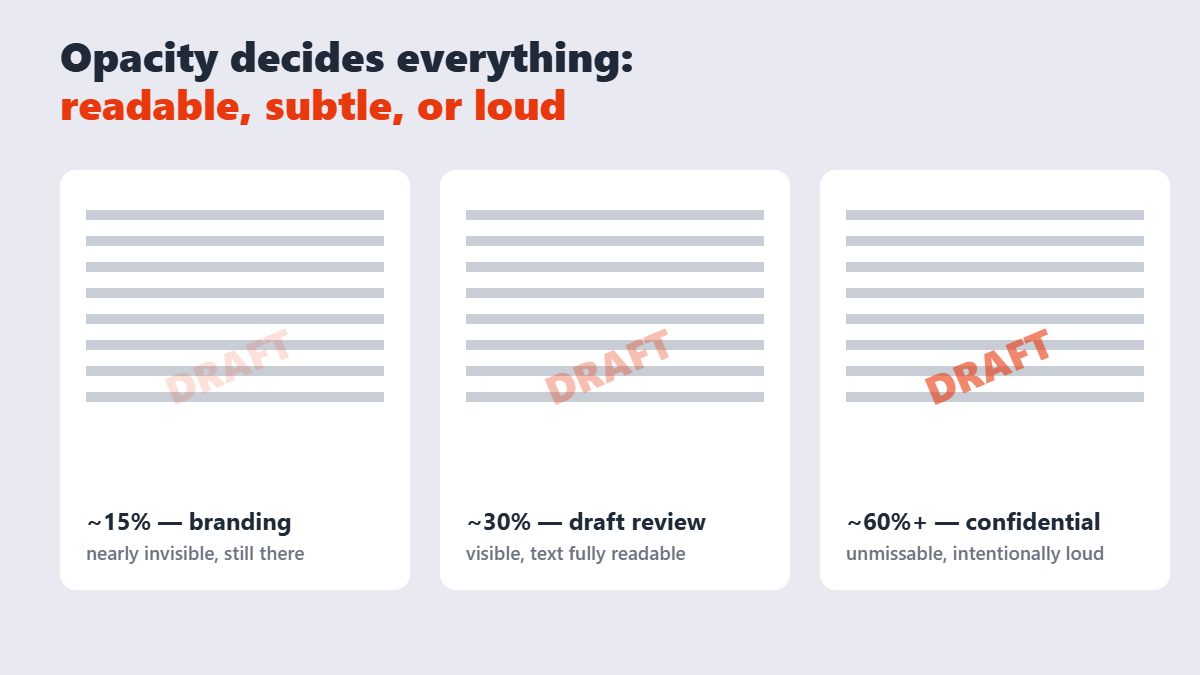
Here’s the rule I apply after watching too many unreadable documents: 30% opacity for working documents, louder only when the label should interrupt reading. A “DRAFT” stamp at 60% makes a proposal hard to review; at 15% it’s invisible at a glance. Around 30% both goals hold — the label reads, the document reads.
The exception is a true CONFIDENTIAL marking on a document you don’t want casually read in a shared space. There, loud is the point — go 50% or higher and accept the noise.
How to watermark a PDF, step by step
- Open the Watermark PDF tool and drop your file in. It runs in your browser — the document never leaves your device, which matters when the watermark itself announces the file is confidential.
- Choose text or image. Text for labels (“DRAFT”, a client name); an uploaded logo for branding.
- Set size, rotation, and opacity against the live preview. Diagonal 45° for status labels; a corner for logos.
- Apply to all pages or only selected ones — drafts usually need every page, extracts sometimes just the cover.
- Download. The watermark is baked in and survives forwarding, printing, and re-saving.
Browser-based tools like this one — along with options like VisualPDF — let you watermark sensitive documents without uploading them anywhere. Server-based alternatives (Smallpdf and friends) work too, but check their deletion policies for anything confidential.
Three watermark mistakes
- Watermarking the only copy. Flatten later if needed, but always keep a clean original — a watermark is a one-way door.
- Logo at full opacity over text. Nobody can read the contract, so nobody signs the contract.
- Watermarking as security. A watermark is a label, not a lock. Anyone with editing software can remove it. For real protection, add a password.
That third one is my hill to die on: watermarks deter honest people from mislabeling documents. They do nothing against someone determined to strip them. Know which job you’re doing.
When a watermark isn’t enough
If the actual goal is “only these people can open it,” skip the stamp and encrypt the PDF with a password. If the goal is “the form fields can’t be altered after signing,” flatten the PDF. Watermarks, passwords, and flattening are three different tools for three different jobs — the strongest documents use the right one instead of all three blindly.
FAQ
How do I add a watermark to a PDF for free?
Use a free tool like the Watermark PDF tool on Sejdaa: upload the file, pick text or a logo, set position and opacity in the live preview, and download. It runs in your browser with no signup.
What opacity should a PDF watermark be?
About 30% for working documents — visible but the text stays fully readable. Go higher (50%+) only for markings meant to be loud, like CONFIDENTIAL, and lower (15-20%) for subtle brand marks.
Can I add my company logo as a PDF watermark?
Yes. Upload the logo image (PNG with transparency works best) in the watermark tool, place it in a corner at reduced opacity, and apply it to every page or a selected range.
Does a watermark prevent people from copying my PDF?
No — a watermark is a visible label, not protection. Anyone with editing software can remove it. To actually restrict access, password-protect the PDF; to lock form fields, flatten it.
Can I watermark only some pages of a PDF?
Yes. Most watermark tools let you apply the stamp to all pages or select specific pages — useful when only a cover page or an appendix needs marking.
Will the watermark survive printing and forwarding?
Yes. Once applied, the watermark is part of the page content — it prints, forwards, and re-saves along with everything else in the document.